

KwickAcademy Course Topics · 5 min · free
Mail merge — main document, data source, merging and printing letters
Learn mail merge: the main document, data source and merge fields, the steps in Writer and Word, and previewing and printing letters. Mail merge makes many personalised letters at once from one common letter and a list of details.
Follows the syllabus of: CBSE Class 9 Information Technology (402)
On screen in this lesson
What is mail merge?
| Makes many personalised letters at once |
| Same message, different names and details |
| Used for invitations, results, certificates |
| Needs a main document and a data source |
The three parts
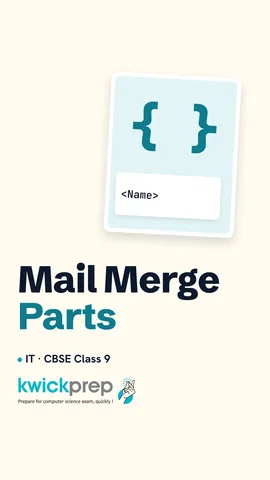
| Part | Contains | Example |
|---|---|---|
| Main document | common text | the letter |
| Data source | changing details | name list |
| Merge fields | placeholders | <Name> |
The data source
| Name | Class | City |
|---|---|---|
| Riya Shah | 9A | Surat |
| Aman Verma | 9B | Pune |
| Neha Iyer | 9A | Chennai |
The main document
| Type the common letter text |
| Leave gaps where details will go |
| Insert a merge field in each gap |
| Field names appear inside angle brackets |
Fields become data
| Main document | Record 1 | Record 2 |
|---|---|---|
| Dear <Name>, | Dear Riya Shah, | Dear Aman Verma, |
| Class <Class> | Class 9A | Class 9B |
| from <City> | from Surat | from Pune |
Mail merge in Writer
| Step | Writer does |
|---|---|
| 1. Start | Mail Merge Wizard |
| 2. Main doc | current document |
| 3. Data | address list |
| 4. Fields | name, address |
| 5. Merge | preview, print |
Quick answers
A one-page letter and 3 records. How many letters print?
3 letters, one per record.
What is a merge field?
A placeholder like ‹Name› that is filled from the data.
KwickClips from this lesson
Short clips, one idea each. Good for revision the night before.
The full lesson, in text
Hello students, welcome to Kwickprep. Your school must send a parent meeting letter to five hundred families. Will someone type five hundred letters, one by one? No. Today we will learn mail merge, with a main document, a data source, and merging and printing the letters.
Mail merge is a feature that creates many personalised letters in one go. Personalised means each letter carries a different person's details. The message stays the same, but the name, class and address change. Schools use it for meeting letters, result letters and certificates. It needs two things, a main document and a data source.
Mail merge has three parts. The main document holds the text that is common to every letter. The data source holds the details that change, like a list of names and addresses. Merge fields are placeholders in the main document, which show where each detail goes. At merge time, each field is replaced by real data.
A data source is like a table. It can be a spreadsheet, a database, or a table in a document. The top row holds field names, which are the column headings. Here the fields are name, class and city. Each row after that is one record, meaning the details of one person. So Riya Shah of nine A from Surat is one record, and three records make three letters.
Now the main document. Type the letter that every parent should receive. Leave a gap wherever a detail like the name will change. In each gap, insert a merge field from the data source. The field shows on screen inside angle brackets, like Name between two arrows. Do not type these brackets yourself, always insert the field.
Here is what merging does. The main document says Dear, followed by the Name field. For record one, it becomes Dear Riya Shah. For record two, it becomes Dear Aman Verma. The class and city fields are filled in the same way, one letter for each record.
In LibreOffice Writer, open Tools, then Mail Merge Wizard, and follow its steps. Step one starts the wizard. Step two picks the current document as the main document. Step three connects the data source, such as a spreadsheet of names. Step four inserts the fields where details belong. Step five merges the letters, lets you preview them, and then save or print.
Microsoft Word keeps mail merge on the Mailings tab. Step one is Start Mail Merge. Step two chooses Letters as the type of main document. Step three is Select Recipients, to choose an existing list or type a new one. Step four is Insert Merge Field, for each gap. Step five is Finish and Merge, to print the letters or edit them as one document.
Let us draw the whole process. First, create the main document with the common text. Next, connect the data source with the list of details. Then insert the merge fields into the gaps. Now preview the letters and ask, are they correct? If yes, merge and print all the letters. If no, fix the data or the fields, and preview again.
Before printing, preview a few letters to catch spelling mistakes in the data. You can print letters for all records, or only for some records, like from record five to ten. You can also merge into a new document, check every letter, and then print. Pause and predict. The main document is one page, and the data source has three records. How many letters print? Three letters, one for each record.
Let us revise what we learned today. Mail merge makes many personalised letters at once. The main document holds the text common to all letters. The data source holds records, one row for each person. Merge fields are placeholders, like Name in angle brackets, filled from the data. Always preview, then merge and print. Try making invitation letters for three friends as practice.
Courses that teach this
| Course | Unit |
|---|---|
| CBSE Class 9 Information Technology (402) | Digital Documentation |
Free to watch, no sign-up. The live classes are the paid course; these lessons stay free either way.
Disclaimer. KwickAcademy is free study material for general learning and revision. Parts of it, including the voice-over, are produced with the help of AI tools and may contain errors; if you spot one, please tell us and we will correct it. Syllabus, marks and exam details follow the latest official board publications available to us, and boards can change them at any time, so always confirm against your board's official website and your school. Using this material does not guarantee any marks or result. Board names and trademarks belong to their owners; Kwickprep is not affiliated with or endorsed by any examination board. We never ask for passwords, OTPs or ID numbers. Your progress is saved only in this browser. Full disclaimer · Privacy