

KwickAcademy Course Topics · 7 min · free
Introduction to shell scripting
Start shell scripting in Linux: first script, chmod +x, variables, read, arithmetic, special variables, test conditions, if-else and for loops. A shell script is a text file of Linux commands that the shell runs one by one.
Follows the syllabus of: GSEB Std 11 Computer Studies
On screen in this lesson
What is a shell script?
| A text file with Linux commands in order |
| The shell runs them one by one |
| Saves time on repeated work |
| Usually saved with the .sh extension |
Special variables
| Variable | Holds | Example |
|---|---|---|
| $0 | script name | ./hello.sh |
| $1, $2 | first, second input | ./add.sh 4 5 |
| $# | number of inputs | 2 |
| $? | exit status | 0 means success |
Test conditions
| Test | Means | Example |
|---|---|---|
| -eq | equal | [ $a -eq 5 ] |
| -ne | not equal | [ $a -ne 5 ] |
| -gt, -lt | greater, less | [ $a -gt 5 ] |
| -ge, -le | or equal to | [ $m -ge 33 ] |
| -f | file exists | [ -f a.txt ] |
Pause and predict
| x=7 |
| y=3 |
| echo $((x % y)) |
| What prints? |
Common mistakes
| Spaces around = in a variable |
| No spaces inside [ ] brackets |
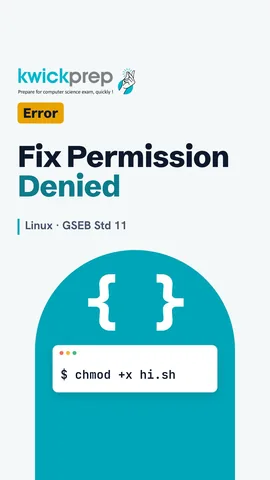
| Forgetting chmod +x: Permission denied |
| Missing fi or done at the end |
Quick recap
| Shell script: commands saved in a .sh file |
| First line #!/bin/bash; chmod +x to run |
| Variables: name=value, use $name |
| read for input; $(( )) for arithmetic |
| if [ ] then else fi; for do done |
Quick answers
x=7, y=3, echo $((x % y)). What prints?
1.
Why Permission denied?
The script has no execute permission; run chmod +x.
KwickClips from this lesson
Short clips, one idea each. Good for revision the night before.
The full lesson, in text
Hello students, welcome to Kwickprep. Every morning, you type the same five Linux commands. Can Linux type them for you? Yes, with a shell script. Today we will write our first script, use variables and input, do arithmetic, and make a pass or fail decision.
Let us start with the meaning. A shell script is a text file that holds Linux commands in order. The shell reads the file and runs the commands one by one, from top to bottom. This saves time when we repeat the same work, like taking a backup every day. We usually save a script with the dot sh extension.
Here is our first script, saved as hello dot sh, written in Vim or any editor. The first line is called the shebang, hash exclamation mark slash bin slash bash. It tells Linux to run this file with the bash shell. Any other line starting with hash is a comment, which the shell ignores. Then echo prints Hello students, and date prints the date.
A new file is not allowed to run, so first we give it execute permission. Chmod plus x hello dot sh adds that permission. Then dot slash hello dot sh runs the script from the current folder. The output shows Hello students, then the date. You can also run it with bash hello dot sh, without chmod.
A variable is a name that stores a value. We write name equals Riya, with no spaces around the equals sign. A space there gives a command not found error. To use the value, we put a dollar sign before the name. So echo prints Riya got eighty two.
The read command takes input from the keyboard and stores it in a variable. First, echo asks the user to enter a name. Read name waits, and whatever the user types goes into the variable name. If the user types Aman, the script prints Welcome, Aman.
The shell treats values as text, so arithmetic needs special forms. Double round brackets with a dollar sign calculate the answer, so a plus b gives twenty five. Older books use the expr command inside back quotes. With expr, spaces around the operator are needed. The star must be written with a backslash before it, so a times b gives one hundred fifty.
The shell also gives some ready special variables. Dollar zero holds the name of the script. Dollar one and dollar two hold the first and second values typed after the script name. Dollar hash holds how many values were given. Dollar question mark holds the exit status of the last command, and zero means it worked.
To make decisions, we test conditions inside square brackets, with a space after the opening bracket and before the closing one. Hyphen e q tests if two numbers are equal. Hyphen n e tests not equal. Hyphen g t and hyphen l t test greater than and less than. Hyphen g e and hyphen l e also say yes when the numbers are equal. Hyphen f tests whether a file exists.
Now a decision in a script. Read m takes the marks. If m is greater than or equal to thirty three, then the script prints Pass. Else it prints Fail. The word fi, which is if written backwards, closes the if block. Missing fi gives a syntax error, unexpected end of file.
Here is the same script drawn as a flowchart. First, the script reads the marks into m. The diamond asks, is m greater than or equal to thirty three? If yes, it prints Pass, and if no, the flow goes down and prints Fail. Then the script stops.
Scripts can also repeat steps with a loop. This for loop takes each word in the list, Mon, Tue and Wed, one at a time. Each time, the variable day holds one word. The lines between do and done run once for every word. So it prints Class on Mon, Class on Tue, and Class on Wed.
Pause and predict. The variable x is seven. The variable y is three. The script prints dollar, double brackets, x percent y. The percent sign gives the remainder after division. What prints? One, because seven divided by three leaves a remainder of one.
Beginners often make four mistakes. Writing spaces around the equals sign breaks the variable. Leaving out the spaces inside the square brackets breaks the test. Forgetting chmod plus x gives Permission denied when you run dot slash script. And a missing fi or done gives an unexpected end of file error.
Let us revise what we learned today. A shell script is a set of commands saved in a dot sh file. The first line is the shebang, and chmod plus x lets it run. A variable is written name equals value, and used with a dollar sign. Read takes input, and double brackets do arithmetic. If, then, else, fi makes decisions, and for, do, done repeats steps.
Courses that teach this
| Course | Unit |
|---|---|
| GSEB Std 11 Computer Studies | Vim Editor and Basic Scripting |
Free to watch, no sign-up. The live classes are the paid course; these lessons stay free either way.
Disclaimer. KwickAcademy is free study material for general learning and revision. Parts of it, including the voice-over, are produced with the help of AI tools and may contain errors; if you spot one, please tell us and we will correct it. Syllabus, marks and exam details follow the latest official board publications available to us, and boards can change them at any time, so always confirm against your board's official website and your school. Using this material does not guarantee any marks or result. Board names and trademarks belong to their owners; Kwickprep is not affiliated with or endorsed by any examination board. We never ask for passwords, OTPs or ID numbers. Your progress is saved only in this browser. Full disclaimer · Privacy