

KwickAcademy Course Topics · 6 min · free
Formatting cells, numbers and text
Formatting changes how a value looks, not the stored value. Ctrl+1 opens Format Cells, and Text format keeps leading zeros.
Follows the syllabus of: NIOS Senior Secondary Data Entry Operations (336)
On screen in this lesson
What formatting means
| Formatting changes how a value looks |
| The stored value does not change |
| 0.25 can show as 25% or 0.3 |
| Formulas always use the stored value |
Where to find formatting
| Home tab: Font, Alignment and Number groups |
| Ctrl+1 opens the Format Cells dialog box |
| Tabs: Number, Alignment, Font, Border, Fill, Protection |
| Always select the cells first |
Number formats
| Format | You type | It shows |
|---|---|---|
| General | 1500 | 1500 |
| Number, 2 places | 1500 | 1500.00 |
| Currency | 1500 | ₹1,500.00 |
| Percentage | 0.85 | 85% |
| Date | 15-08-2026 | 15 August 2026 |
| Text | 0987 | 0987 |
Numbers stored as text
| Leading zeros vanish in General format |
| Format cells as Text before typing |
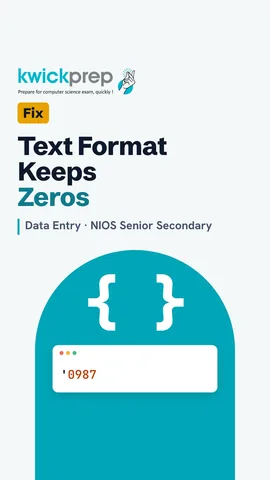
| Or type an apostrophe first: '0987 |
| Use Text for PIN codes, mobile and roll numbers |
Decimals and hash signs
| Increase Decimal and Decrease Decimal buttons |
| Comma Style adds thousand separators |
| ##### means the column is too narrow |
| Widen the column; the value is still there |
Text and font formats
| Tool | Shortcut | Use |
|---|---|---|
| Bold | Ctrl+B | headings, totals |
| Italic | Ctrl+I | notes |
| Underline | Ctrl+U | titles |
| Font and size | Home tab | readable sheets |
| Font colour | Home tab | warnings |
Quick answers
A1 holds 0.075 shown as 8%. What does =A1*1000 give?
75, because the stored value is 0.075.
What does ##### mean?
The column is too narrow.
KwickClips from this lesson
Short clips, one idea each. Good for revision the night before.
The full lesson, in text
Hello students, welcome to Kwickprep. You type a mobile number or a PIN code starting with zero, and Excel changes it. Why does that happen, and how do you stop it? Today we will learn to format numbers, text and cells, so every sheet looks clear and shows the right values.
First, understand what formatting really does. Formatting changes only how a value looks on the screen and on paper. The value stored inside the cell stays the same. For example, 0.25 can be shown as 25 percent, or rounded to 0.3 with one decimal place. When a formula uses that cell, it always uses the real stored value, 0.25.
Where are the formatting tools? The Home tab has three groups for this, named Font, Alignment and Number. Pressing Ctrl+1 opens the Format Cells dialog box, which has every option in one place. Its tabs are Number, Alignment, Font, Border, Fill and Protection. And remember the golden rule: first select the cells, then apply the format.
Here are the number formats you will use most. General is the default, and it shows the value as you typed it. Number lets you fix the decimal places, so 1500 shows as 1500 point zero zero. Currency adds a symbol like the rupee sign and thousand separators. Percentage multiplies the display by one hundred, so 0.85 shows as 85 percent. Date shows a date in the style you choose, such as 15 August 2026. Text keeps exactly what you typed, including a leading zero.
This answers our opening question. In General format, Excel treats 0987 as a number, and a number does not need a leading zero, so the zero disappears. To keep it, format the cells as Text before you type. Another quick way is to type an apostrophe first, and the apostrophe itself is not shown. Use Text for PIN codes, mobile numbers and roll numbers, because you never do arithmetic with them.
Two more number tools sit in the Number group. The Increase Decimal and Decrease Decimal buttons add or remove one decimal place each time you click. Comma Style adds thousand separators, which makes big amounts easy to read. Sometimes a cell shows only hash signs. That simply means the column is too narrow for the formatted number, so widen the column and the value appears again.
Now let us format the text itself. Bold, with Ctrl+B, makes headings and totals stand out. Italic, with Ctrl+I, suits small notes. Underline, with Ctrl+U, is sometimes used for titles. From the Home tab you can change the font and size, so the sheet is easy to read. Font colour is useful for warnings, like showing pending fees in red.
Alignment controls where content sits inside a cell. By default, text lines up on the left and numbers on the right, but you can choose left, center or right. Top, middle and bottom align content up and down, which matters in tall rows. Wrap Text breaks a long entry, like an address, into several lines inside one cell. Merge and Center joins selected cells into one and centres the text, which is good for a sheet title. Orientation rotates text, so long headings fit over narrow columns.
Two tools save a lot of time. Format Painter, the brush button, copies the format of one cell and paints it onto others, without copying the value. Double-click the brush to paint many places, and press Escape to stop. Clear Formats, under the Clear button, removes all formatting from the selected cells. The values stay safe, and only their look returns to General.
Now pause and predict. Cell A1 contains 0.075. It is formatted as Percentage with zero decimal places. What does the cell show? It shows 8 percent, because 7.5 percent is rounded for display. And what does equals A1 times 1000 give? It gives 75, because the formula uses the stored value 0.075, not the rounded 8 percent.
Let us revise what we learned today. Formatting changes how a value looks, never the stored value. Ctrl+1 opens Format Cells, which has every option in one place. Text format keeps leading zeros in PIN codes and mobile numbers. Hash signs only mean the column is too narrow. Format Painter copies a format, and Clear Formats removes it, so try each one on a fee register today.
Courses that teach this
| Course | Unit |
|---|---|
| NIOS Senior Secondary Data Entry Operations (336) | Lesson 7: Formatting of Spreadsheets |
Voice-over in this lesson is AI-generated. The script is written and checked by Kajal Ma'am. Boards can revise a syllabus mid-year, so confirm anything you plan around against the official board circular. Keep your passwords, OTPs and ID numbers to yourself — we never ask for them. To reach Kajal Ma'am, use the WhatsApp button; sharing your number there is how we call you back.
Free to watch, no sign-up. Live classes with Kajal Ma'am are the paid course; these lessons stay free either way.